Showing posts with label Windows Tips N Tricks. Show all posts

Wednesday, October 12, 2011

Short Guide To Windows Xp Maintenance

Computers are like pets, for me they are my best buddies. They need good care. We want our computers to be fast, efficient and responsive. But when it slows down mostly people get mad on it. It is not the computer's fault if you had given it some good care it would never betray you. Basically its due to your operating system that slows down your computer. Operating system going bad depends on various situations, too much heat up, low disk space, viruses, etc. Here in this article i will be discussing some tips to windows xp maintenance. Have done too much blah blah, now lets just start the article :p.

To Read full article click the link below

Tuesday, September 20, 2011

Windows 7 keyboard shortcuts you must know

Here is a list of Windows 7 keyboard shortcuts, I recommend and use daily. They save a lot time and are a lot helpful.

If you are not used to shortcuts then you might reconsider on giving some time to shortcuts as it saves a lot time and increases your performance.

To view Windows 7 keyboard shortcuts list click on the link below 

Friday, July 23, 2010

How To Fix Print Spooler Service Error

One of my group members asked me to help him out in installation of his printer as he was unable to install his printer and was getting print spooler service error. I thought to share the print spooler service error fix along with you guys too. I am mentioning my members help request and my solution below.
"HI Friend
I am using windows xp sp3 but today suddenly I have lost my installed Printer (I am using HP 6L Printer). When I want to add printer, there is message coming in front of me. " The printer spooler service is not running"
Could I resolve this problem without installing a fresh windows?"

Solution
The basic function of print spooler service is to load files to memory for printing i.e. you need this to print stuff.

Now to fix Print Spooler Service Error go to

Start> Run > CMD and press enter, then type 'net start spooler'

for further trouble shooting as to why it is not auto running, go to

Start> Control Panel (in classic veiw) > administrative tools > services

in there you will find print spooler, make sure that service is set to automatically run, you can also start the service from there and if it can't run it will give you the error as to why.

If any one of you still has a problem regarding print spooler service error, feel free to contact me.

Saturday, November 7, 2009

Cool Computer Tricks - Make Your Pc Speak Whatever You Type

Now you can create your own text to speech converter software to make your computer speak whatever you type. I found this script on some Vietnamese site. It’s pretty cool. Just run this script and make it read any funny sentence.Copy the code given below in notepad and save it as anyname.vbs. Make sure that you save it as .vbs file.

Dim message, sapi
message=InputBox("What do you want me to say?","Speak to Me")
Set sapi=CreateObject("sapi.spvoice")
sapi.Speak message

After making a vbs file just double click on that file and type anything you want in the text box.


Cool Computer Tricks


Tags: Computer Tricks, Computer Trick, Cool Computer Tricks, Pc tips and tricks, Pc trick, Tricks

Friday, April 17, 2009

Virus Protection : How to remove Boot.com Virus from Hard Drives


Virus Protection : How to remove Boot.com Virus from Hard Drives


boot.com
is a virus which attacks the hard drives & the hard drives could not be opened by double clicking. Most anti virus programs are unable to virus clean up and even if they do, in most cases they are unable to delete viruses, only quarantine it. Here are some steps which can help you out to remove boot.com virus from your hard drives.

In hard drives after enabling viewing hidden file u can see some autorun file & a file named boot.com which cannot be removed just by deleting.

Here’s the REAL way to clean this off your system.

You should do these steps after a rebooting computer in safe mode.

1) Navigate to the problem drive(s) via the Explore option.

2) Click on TOOLS - FOLDER OPTIONS

3) Click the button which says ‘Show hidden files and folders.

4) UNCHECK the following boxes

Hide extensions for known file types

Hide protected operating system files

5) Find and delete the autorun.ini file and the recycled folder on the root directory of all virus infected drives.

6) Check “c:\windows\system32\dllcache” for boot.com virus file and delete it if present.

7) Check “c:\windows\prefetch” for boot.com file and delete if present.

8) Delete all files from c:\windows\temp
(Some files may not delete, that’s OK, they’re in use by the system and not virus files.)

9) Delete all files from c:\Documents and Settings\[USER PROFILE]\Local Settings\Temp
(Again, a couple files may not delete, don’t worry.)

10) Run Regedit

11) Make sure you are at the very first entry of the registry hive.
(My Computer should be highlighted) then click EDIT - FIND

12) Search for “boot.com”. If it finds an entry, delete it. Keep hitting F3 until you’ve deleted all instances of boot.com in the entire registry.

13) Scroll the left column back up to the top and highlight the My Computer again at the top of the registry hive.

14) Click Edit - Find again and search for ‘recycled’ and repeat as in step 13, deleting the entries as it finds them.

15) Close registry editor and try opening the infected drives.

Now You are Done kindly let me know if you are still having some problem.


Tuesday, March 10, 2009

Speed Up Pc Computer Using Windows Tweak | How to Speed up your PC by this simple RAM tweak

How to Speed up your PC by this simple Ram Memory tweak

Well this E Learning Tutorial or in other terms a Windows Tweak for the Techs. So… Faster Computer, first of all why a Faster Pc Performance?? Well its not a question of a Faster PC but this is more a question of when. If you’ve been running heavy Software Programs (maybe 3d video game, Photoshop, something like that) the RAM can get taken up quickly. Even when you close down these Computer Programs, Ram Memory can still be eaten-up.

You’ll notice this effect at the end of the day. When you first turn on your PC it’s running smoothly, by the end of the day slows down. Yes, you can get various Software Applications to solve this. May of which costs but when free things matters, here is how a simple Windows Tweak can work (in both XP and Vista)


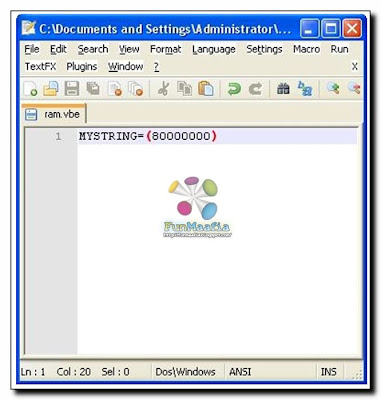
1. Open up Windows Notepad (I use Notepad++, review coming soon)

2. Type in MYSTRING=(80000000)

3. Save the file as MEMORY.VBE (or RAM.VBE if you like…just remember the .VBE)

4. Make sure you save the file to your DESKTOP.

5. Just double-click the newly created file on your desktop whenever your PC seems to slow down. It will give your RAM a much needed Boost.

Not that if you have less than Ram Memory 128mb (do you really? If so then Oh! wake up you need a Memory Upgrade. (Ram Upgrading will make your PC a lot faster) change the 80000000 to 160000000 and it should work the same.

RAM Defrag is nice Freeware Software utility that frees up your RAM however it clears of all the injected DLL’s and the Cache so the Computer may get more sluggish for a while a Defrag.


Liked the Trick, I hope you wont mind in wasting 20 seconds and writing me a comment below. Thanks for that !

Saturday, February 7, 2009

Make Windows XP Shutdown Faster than ever


You can make your shut down process a bit faster by the following tweak.

Steps (Backup the registry file)

1. This step is very important.
Export (right click Export) the following keys and save it to a safer place.

HKEY CURRENT USERControl PanelDesktop
HKEY_LOCAL_MACHINESYSTEMCurrentControlSetControl

2. Open Notepad, copy and paste the following to the Notepad.

Windows Registry Editor Version 5.00

[HKEY_CURRENT_USERControl PanelDesktop]
AutoEndTasks=1
HungAppTimeout=1000
WaitToKillAppTimeout=2000

[HKEY_LOCAL_MACHINESYSTEMCurrentControlSetControl]
WaitToKillServiceTimeout=2000

3. Save the file and close Notepad.

4. Change extension of the file from .txt (text file) to .reg (registry file).

5. Double click open this file and click Yes and the OK .

Tags: windows registry, regedit, system registry, regedt32, regedit.exe, window, microsoft windows, windows 98, windows nt, windows 2000, windows xp, windows 95, windows ce, windows me, pocket pc, millennium, edition, 2k, winme, win2k, win32, x-box, xbox, tweaks, hacks, tweaking, hacking, cable modem, dsl, adsl, xdsl, modem, broadband, speed tweaks, guide, tutorials, edit, editor, editing, troubleshooting, troubleshoot, restoring, restore, backup, error, fault, incorrect, hacks, secret, programming, command line, policy editor, inf file, cleaner, checker, corrupt, tutorial, help, faq, support, clean, tool, repair, deleting, settings, batch, computer, pc, internet, speed

Thursday, February 5, 2009

Increase Hard Disk speed in Windows


If you like to increase, optimize your Hard Disk IO - readwrite speed without buying expensive software utilities to do that job or changing the HD, just follow next steps. With doing these steps you will increase Hard disk speed (depends of manufacture and specification, but its worth to try). The most speed improvement is visible with IDE drives; however there are reports that this tweak also does good for SCSI disks.

In any case, it won't harm your system, so try it yourself and let me know what you find!

Steps

1. Run SYSEDIT.EXE from the start & then Run command.

2. Expand the system.ini file window.

3. Scroll down almost to the end of the file untill you find a line called [386enh].

4. Press Enter to make one blank line, and in that line type

5. Irq14=4096 (note This line IS CASE SENSITIVE)

6. Click on the File menu, then choose Save.

7. Close SYSEDIT and reboot your computer.

8. Restart windows!

The speed improvement will be noticed just after the system reboots, any system info. software can be used to check the improvement.

Tags: disk management, partition, hard disk, hard disk drive, hdd, boot, disk editor, reorganize, diagnostic, windows, windows xp, winxp, win xp, tune-up, tweak, tips, free, download, software

Saturday, December 27, 2008

How to Hide CDROM in Windows

Do you know How To Hide Cd Or DVD Rom In Microsoft Windows if your answer is No then its time to see this small tip which will help you to hide your CD drive or DVD drive from you PC.
Just go to my computer ( windows + E (short cut)) to visit My computer and right click on the CD Drive you want to hide and select properties.

Once you Click properties you can see window with DVDCD-RW DRIVE PROPERTIES.Under that select hardware and select on the CD ROM you want to hide and click on properties.Once you click on properties another window with ROM Properties appears.You can find device usage at the bottom of the window.click donnot use this device and click ok.


ou can notice your CD drive disappeared.To reactivate or get the CD Drive back just right click on any of your hard drives and follow the same procedure to activate the CD ROM.


Hope you like this post any comments and suggestions are welcome.

Monday, November 24, 2008

Lock Pc wid Single Click

Feel hard to press CTRL+ALT+DEL to lock your machine?

Simply Keep your Windows Logo Key pressed and at the same time press "L" it will Lock your Pc or

Just Follow The Procedure Below :


Try this and create the icon to lock the machine.
1. Right click an empty spot on the desktop, point to New and click Shortcut.


2. In the Create Shortcut dialog box, type the following in the 'Type the location' of the item text box:"rundll32 user32.dll,LockWorkStation" remove quotes while typing.


3. Click Next.4. In "Type a name for this shortcut", type "" (any name as u wish) and Click Finish.


5. Now you have created a shortcut in your shortcut bar & use it.

Saturday, November 22, 2008

Hidden Blue Tooth In Xp n Vista

Now you don't need 2 install any software for ur blutooth device.you don't know but u already
had it in ur window xp nd vista it can b used as:-

1.open d run command
2.now typ 'fsquirt' without quotes
3.now just select either u want 2 send or receive any file very easy.

Enjoy

Tuesday, October 7, 2008

How To Shutdown Pc With A Timer

How to Shutdown PC with Timer
Well here are some ways in order to shutdown your PC with the help of a Timer.
METHOD 1
Do you know that you can make your PC shutdown at a time u wish to?
Here is the trick! How To Make A Shutdown Timer!
Step 1:
Right click on your desktop and choose “New=>shortcuts“.
Step 2:
In the box that says “Type the location of the shortcut“,
type in “shutdown -s -t 3600” without the quotation marks and click next.
Note: 3600 are the amount of seconds before your computer shuts down. So , 60secs*60mins=3600secs.
Step 3:
Make up a name for the shortcut and you’re done.
You can change the icon by right clicking=>properities=>change icon=>browse.
To abort:
To make an abort key to stop the shutdown timer just create another shortcut and make the “location of the shortcut” to “ shutdown -a” without the quotes.
METHOD 2
Here is another trick to shutdown at a specific time, for example you wish to shutdown at 11:35am. Type this in
start=>Run
Type Code: at 11:35 shutdown -s
To abort
Code: shutdown -a
Note: all time are in 24hr, example u would like to shutdown at 8:30pm, you should type
“at 20:30 shutdown -s” without quote
METHOD 3
you can use a batch for that as well it makes it easier to use
just run the batch and enter the time you want it to shutdown
shutdown.bat
Type Code:
@echo off

title Scheduled Shutdown Batch Example by chacha1234
color A
echo Enter Time To Shutdown (example 19:30)
set /p stime=
cls
at %stime% “”shutdown -s -t 00″” >nul
echo Your PC Will Auto Shutdown At %stime%
echo Press Any Key To Exit
pause >nul
exit

also you can add -c “desired message” at the end of the shutdown command
for example
shutdown -s -t 60 -c “Shutdown Pc”

using this command u can also schedule ur pc to restartfor example
shutdown -r -t 60 -c “Restarting Pc”