Wednesday, October 12, 2011
Short Guide To Windows Xp Maintenance
Thursday, August 25, 2011
Friday, August 12, 2011
How To Check Who Is Accessing Your Wireless Connection
Friday, April 15, 2011
Friday, December 31, 2010
Hide Folder in Windows Xp Without Any Software
Thursday, December 2, 2010
Friday, July 23, 2010
How To Fix Print Spooler Service Error
Could I resolve this problem without installing a fresh windows?"
Solution
Now to fix Print Spooler Service Error go to
Start> Run > CMD and press enter, then type 'net start spooler'
for further trouble shooting as to why it is not auto running, go to
Start> Control Panel (in classic veiw) > administrative tools > services
in there you will find print spooler, make sure that service is set to automatically run, you can also start the service from there and if it can't run it will give you the error as to why.
If any one of you still has a problem regarding print spooler service error, feel free to contact me.
Wednesday, June 2, 2010
How To Crack WinZip Or WinRar Password
1) Download Zip password Recovery Magic v6.1.1.169 from this link and install it
2) Launch Zip password Recovery Magic v6.1.1.169 and open winrar / winzip file that you want to crack
Saturday, November 7, 2009
Cool Computer Tricks - Make Your Pc Speak Whatever You Type
Dim message, sapi
message=InputBox("What do you want me to say?","Speak to Me")
Set sapi=CreateObject("sapi.spvoice")
sapi.Speak message
After making a vbs file just double click on that file and type anything you want in the text box.
Friday, February 27, 2009
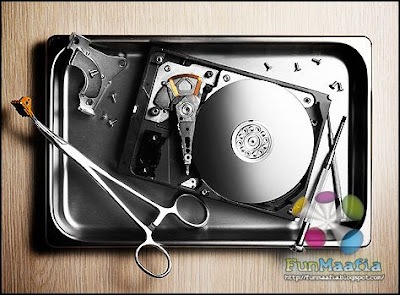
Harddrive Data Recovery | Basics of Data Recovery

Hard Drive Recovery or repair is almost a misnomer. Once a hard drive begins to fail nothing can stop it. There are, however, options that may save your data's life.
Common Causes/Symptoms of Data Loss in HDD Drives
• Computer won't boot
• Inaccessible drives and partitions
• Applications that are unable to run or load data
• Corrupt files/data
• Bad sectors
• Virus Attack
• Hard disk drive component failure
• Hard Drive Crash
• Fire or water damage
• Media surface contamination and damage
• Accidental reformatting of partitions
• Accidentally deleted files
Data Recovery Techniques
Basic questions which needs to be answered before recovery process
1. What is the data which needs to be recovered?
2. What type of hard drive is it?
3. How much data is on the hard drive?
4. What happened when the drive failed?
5. How fast do you need the data?
Recovering critical data is a specialized process that requires the right software, hardware and advanced techniques. In many failure-related cases, the chances of recovering data from a damaged hard drive range from 90-100%. If the electronic system is the only thing affected, then the drive can often be reused after the electronic control panel has been replaced. If, on the other hand, the defect is of a mechanical nature, then recovery will be a bit more difficult, which can be taken care at any Data Recovery Companies lab.
If it is problem related to the file system, which has caused inaccessibility of the data then it can be recovered using Data Recovery Software, an independent review has been posted on my website which lists the best in the field and helps you to identify the correct solution.
Hard Drive Recovery Tips
The first and most firm rule of thumb for preventing a loss of your data is to do complete and regular Hard Drive Backups! This is also the rule that most people do not bother to follow. Today, with a multitude of options for backing up your hard drive there really is no excuse for not doing so. Cheap and affordable USB hard drives can act as redundant storage for your computer, making copies of your entire hard disc drive with the push of a button. A flash drive itself can be used as a backup medium for smaller amounts of personal files as well.
On a regular basis every computer owner should run the Scandisk utility that is included with your Windows installation. Right click on your hard drive's icon, select Properties, select the Tools tab, and click on Error Checking. This utility scans your hard drive for areas that have corrupted information. Such sectors of bad data are often a prelude to a looming hard drive failure. If bad sectors are found you should immediately back up your data and consider replacing the drive in the future.
If your hard disc drive has shown the final warning signs of failure and will not allow your computer to boot you have very few options.
• If possible, backup your most important data immediately.
• Disregard your program files and other software as it can be reinstalled from your original discs.
• Save the data that cannot be replaced first.
If the computer has stopped working or refuses to boot up turn the computer off, unplug it, open it up, and carefully remove the hard disc drive from the case. Place the hard drive in a zippered freezer bag, seal it tightly while pressing out as much air as possible, and THROW IT IN THE FREEZER.
Leave the hard drive in the freezer for 24 hours. In the meantime, go to a working computer and download a shareware copy of Hard Drive Mechanic and install the software onto a blank floppy disk.
The next day, reinstall the hard drive as quickly as possible, boot the computer from the floppy disk you copied the Hard Drive Mechanic to, and start it up. With luck, the drive may continue to work long enough for you to backup your files, but the Hard Drive Mechanic software is there to help you should there be no other option left.
Computer Data Recovery Safety Tips
If your system has "crashed" and you can no longer access the operating system or see the drive in the BIOS, then shut the system down immediately and do not run any further power through the drive by attempting reboots. This is considered a physical problem with the drive and is an extremely sensitive issue. If the head stack inside your drive has been damaged, you may cause further additional damage to the platter/s of the drive, upon which your data is stored.
If you have deleted a file or files or accidentally formatted your drive, then the most important thing to remember is to NOT write or install ANY new information onto that drive. Deleting files simply removes the locating tag of the file, but the file is still intact on the drive. If you add new data to the drive, you may over-write your lost data; losing it forever. Using advanced software or contacting Data Recovery Expert can re-assemble the binary code and restore your files.
If your partition has become corrupted, the most important thing to remember is NOT to attempt a re-install of your operating system or add new data to the drive. Again, contact Data Recovery Expert to use specialized software and techniques to repair the partition and/or extract your data.
If you have deleted a partition, do not attempt to restore it by formatting the drive as this will only result in the addition of an empty partition. It will not recover your data.
If you experience a single file corruption, be sure not to attempt creating a new file with the same name as this will partially over-write the file and will greatly decrease our ability to recover fully.
Though computers are widely used not many people know what to do in the event of a computer breakdown. How you handle your data recovery process will determine whether information is salvaged or permanently lost. This procedure should ONLY be attempted by a Data Recovery Specialist.
Note: IF YOUR SYSTEM HARD DRIVE EMITS UNUSUAL NOISES (CLICKING, GRINDING OR METAL SCRAPING), TURN IT OFF IMMEDIATELY! This symptom typically indicates a head crash that can destroy your data. Hard drives spin with extreme speed; therefore, wide damage can occur in a short period of time. Contact Data Recovery Specialists immediately, as this situation demands professional recovery.
Monday, February 23, 2009
Virus Protection : How to remove Virus from USB Drives
Whenever you plug a USB drive in your system, a window will appear similar to the one shown below

Virus Protections Trick
Don’t click on Ok , just choose ‘Cancel’. Open the Command Prompt by typing ‘cmd‘ in the run box. In the command prompt type the drive letter: and press enter . Now type dir /w/a and press enter.
This will display a list of the files in the pen drive. Check whether the following files are there or not
• Autorun.inf
• Ravmon.exe
• New Folder.exe
• svchost.exe
• Heap41a
• or any other exe file which may be suspicious.
If any of the above files are there, then probably the USB drive is infected. In command prompt type attrib -r -a -s -h *.* and press enter. This will remove the Read Only, Archive, System and hidden file attribute from all the files. Now just delete the files using the command del filename. example del Ravmon.exe. Delete all the files that are suspicious. To be on a safer side, just scan the USB drive with an anti virus program to check whether virus clean up is complete or not. Now remove the drive and plug it again. In most of the cases, the real culprit turns out to be the “Autorun.inf” file which mostly gets executed when someone clicks Ok in the dialog window which appears above. Thus the infections can spread
Security Tip
Disable the Autoplay feature of USB drives. If you disable the Autoplay feature of USB drives, then there are lesser chances of the virus spreading. A tool which can perform such a function is Tweak UI. Download it from here install it.

Run the program. Now you can disable the Autoplay feature of the removable drives as shown above. By following the above steps, you can keep your USB virus protected.
Update: Tweak UI is a freeware software you can download it here: http://www.filehippo.com/download_tweakui/
Tuesday, January 20, 2009
Cool Google Trick

Step 1
Open a Google website & click images

Step 2
Search for any celebrity (For e.g. Jessica alba) (As shown Above)

Step 3
Add &imgtype=face to the address bar as marked below & press enter

Step 4
It show only images containing faces as you can see below
Tags: google tricks,search tricks,Google search tricks,google search cheats,top 10 google searches,best google search tricks,amazing google tricks,google search tips
Wednesday, October 1, 2008
How to boost XP speed by by changing real time clock priority?
Open Registry by going to START-RUN and typing REGEDIT.
Navigate to
[HKEY_LOCAL_MACHINE\System\CurrentControlSet\Control\PriorityControl].
If you see an entry by the name IRQ8Priority set it to a value "IRQ8Priority"=dword:00000001
if you don't then click on the right pane and add a new dword entry with given name.
IRQ8 is typically reserved for real time clock in most of the computers.
Make sure thats the case (by going to device manager -> system devices -> system COMS/realtime clock -> properties -> resources tab , if it is set to another number try adding an entry with that number N as IRQNPriority) . Generally realtime clock priority boosting helps most but you are free to try others as well.
Friday, September 26, 2008
KILL MOSQUITOES WITH YOUR COMPUTER
Stop using chemical based Insecticides to kill mosquitoes, because you might kill yourself.
Download these Anti Mosquito software to repel those annoying insects and be safer & greener
How does it work?
Dragonflies are the mortal enemy for mosquitoes and in flight they generate sound frequencies (approximately) between 67 Hz and 45 Hz, depending on their sizes.
56 Hz is a good average number in between those frequencies. Your PC sound card and speakers will work well for this purpose. There are many sound and tone generator programs available on the internet for both the Mac and Windows PC. Setup your computer with the sound/tone generator program running and then play the sound through your computer speakers. The speakers can be aimed directionally for complete room coverage.
The sound level on the speakers should be adjusted so it is barely audible. This arrangement can be setup in a bedroom where you would like to have the window open but are worried about mosquitoes. One speaker should be fairly close to where you are sleeping.
Here are some links to more advanced tone generator software which can actually sweep between the 45 Hz and 67 Hz frequencies:
http://www.nch.com.au/tonegen/index.html
http://www.esseraudiosolutions.com/ttg.htm
Kiun K Saala Ek Machar AadMee Ko HiJRa Banadeta Hai :P
hey its working tested..........
Thursday, September 18, 2008
Make your self more productive using gmail with some useful shortcuts
I have become more addictive using gmail these days specially because we have to reply to users who send their computer problems on Techno Maafia.
While handling these large number of email, I was just trying to get to know quick and easy to remember shortcuts for gmail. So, I google for gmail keyboard shotcuts and got landed to a page here.
But after seeing these shortcuts I was even worried how could any one remember all of them, I filtered out some easy to remember shortcuts.
Quick Easy to Use Shortcuts For Gmail
1. To Select Unread Mails press SHIFT+8+u or *+u
2. To Mark the Selected Emails as read press SHIFT+i or *+i
3. To Unselect any of the mails press SHIFT+8+n or *+n
These small sets of shortcuts could be much useful when you have to mark some unread mails in your gmail inbox quickly as read.
Tip: You can see the complete list of shortcuts here
I hope you liked the above post, if you want you can get more updates, get these posts via email for free.


